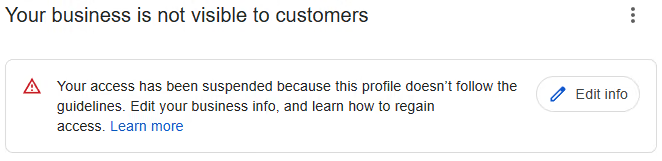
The Google Business Profile ID is required to appeal a suspended Google Business Profile. While finding this information with a desktop browser is easy, on a mobile phone the Google Maps app and mobile web browser handle the New Merchant Experience (NMX). This complicates the process, and makes the Profile ID difficult to find. In this short guide, I explain how to find the Google Business Profile ID on a mobile device. Desktop is also included, if you happen to use that platform.
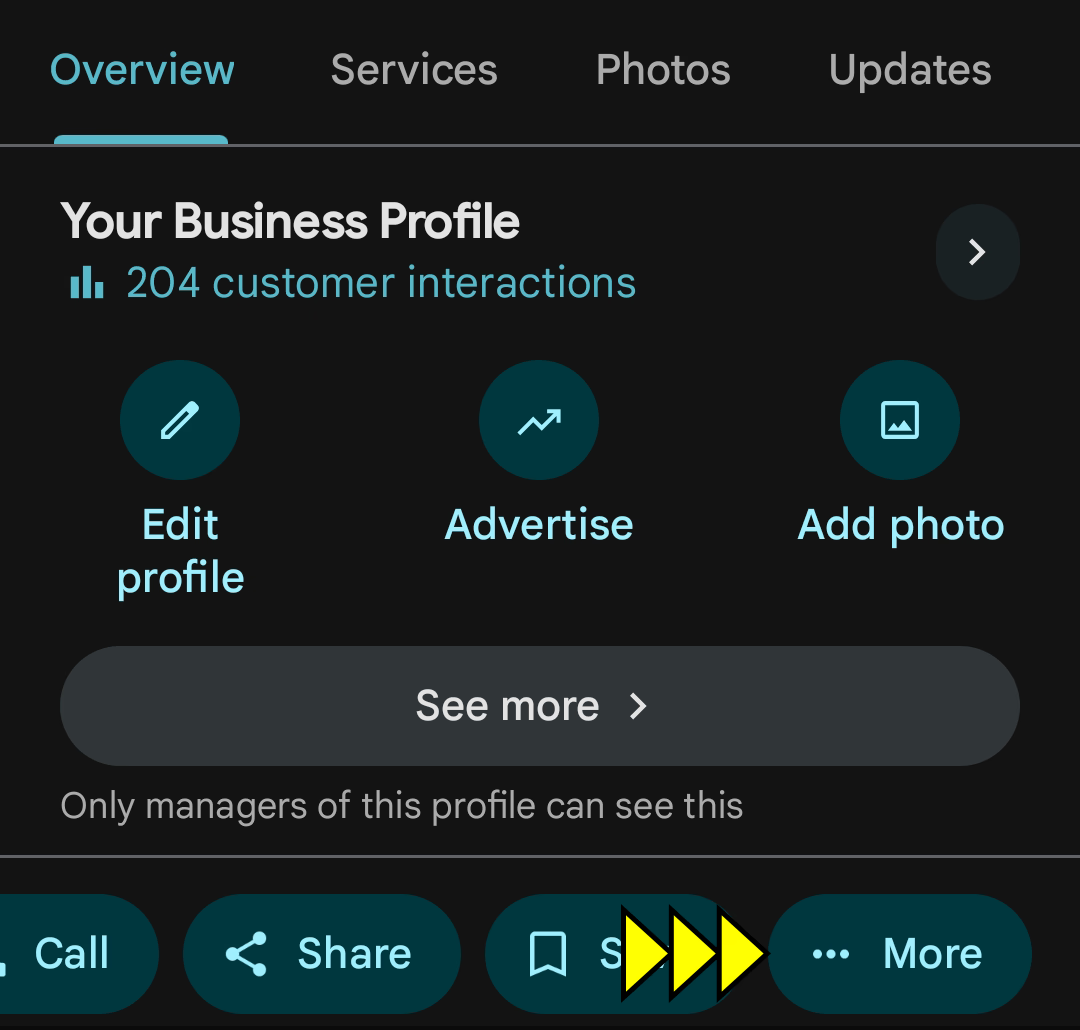
The Profile ID is required to escalate this issue to Google. This information is not easy to find on devices, so here are the mobile instructions:
- Go to https://business.google.com/ and click on “See your profile”
- Google Maps app opens. Near the top, click on “See Business Profile”
- A new page opens. In the bottom footer, slide all the way to the right for “… More”
- Click “Business Profile settings” from the menu
- Choose “Advanced settings >”
- Copy the Business Profile ID shown in this field
This process is seamless with a desktop browser:
- Go to https://business.google.com/ and click on “See your profile”
- Locate the item menu near the upper-right corner (three stacked dots)
- Click “Business Profile settings” from the menu
- Choose “Advanced settings >”
- Copy the Business Profile ID shown in this field