If you have recently moved business addresses, but cannot change the hidden address for your Service-Area Business, then this guide will instruct you on the steps to make the move while keeping the reviews.
Google asks owners to hide their location from the public if they are a Service-Area Business (SAB), such as home- and mobile-based businesses. This makes sense, because you don’t want people knocking on your front door when you must travel out to service clients, but it also complicates matters regarding your Google Business Profile, because once an address is hidden on the profile it cannot be changed using traditional methods.
When the address is published public, such as for a commercial storefront, then changing that address would be as simple and straight-forward as replacing the old with the new. However, because the address is hidden, a Service-Area Business has only one choice if they have moved business locations: create a new profile, and ask Google to move (not merge) the old one. If you’re a SAB that has moved business to a brick-and-mortar storefront location, however, you may now show the address public – but doing so will trigger verification.
The Service Area-Business (SAB)
While there are plenty of legitimate home-based businesses with a publicly-shown home address, such as a day care center, dog breeder, and fortune telling services for example, Google requires them to have permanent fixed signage that is prominently displayed to visitors at the home-based business address. Mobile- and home-based businesses that perform work elsewhere, such as a window cleaning service, janitorial service, and especially a home-based locksmith business for example, must hide their address by toggling off the “Show business address to customers” under Location and Areas (illustrated below). This makes them into a Service-Area Business.

Avoid Losing Your Reviews
If you’ve been a Service-Area Business for some time, then you have likely received some quality 5-star reviews and want to ensure they are not lost. This is the strongest reason for asking Google to move your Business Profile, which I will detail the steps below. However, if your business has very few – or mostly negative reviews, then the best course of action would be to mark the business permanently closed and then create another Google Business Profile for the new (hidden) address. In either event, if you are a Service-Area Business that has moved business locations, then you will absolutely want to create a new profile so that your business appears in Maps searches local to the new address.
Step 1: Create a new Google Business Profile (GBP)
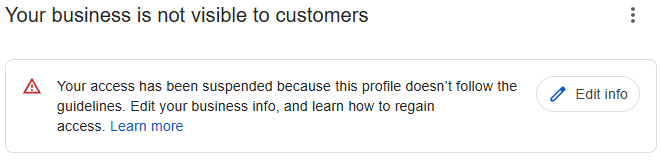
Since you cannot replace the hidden address on your existing Google Business Profile, then the only alternative is to create a new one. Do not make the mistake of showing the address public and attempt to enter the new business address unless it has permanent fixed signage prominently displayed. If you mistakenly decide to show business address to customers and then add the new address when it should be hidden, don’t be surprised if this triggers a suspension.
Step 2: Verify and Update
Your new GBP will have to undergo verification, which may include methods such as email, telephone, and postcard. It’s a good idea to ensure that online citations for your business have been updated to reflect the new address, and potentially new phone number. Visit and change the information everywhere you find your old Name/Address/Phone (NAP). In addition to your website, it is especially useful to change Facebook, Yelp, and BBB listings. Most importantly, the new Business Profile must be verified and in good standing before you may proceed.
Step 3: Collect Business Profile ID
Record the Business Profile ID for both the old and new Google Business Profiles. Find this information in the Advanced Profile Settings. Begin by opening your Google Business Profile, then select the ‘more’ stacked dots menu 

Step 4: Contact Google Support
This should be an easy step, but when we went through this process earlier today I found myself stuck in a loop. Begin by visiting the Google Business Contact Us form. Select your business (either, as they likely have identical names) and then type and select “Moved business” before confirming ‘Next Step’ twice. At this point, you should be given the ‘Email’ option.
Your email should include all of the information requested by the form, and explain that your service-area business has moved, and that you would like the reviews from old profile ID moved to the new profile ID. Make sure that you do not ask to merge, as this is only appropriate for profiles with the same physical address. In at least one instance, the Google Team Member requested that the old profile be marked ‘Permanently closed’ before they would proceed.
One this process is complete, the old Google Business Profile should disappear entirely from your management page, and all of the reviews should be moved to the new Business Profile.
Mistakes Happen
While this guide does a great deal of hand-holding through the ‘Moved Business’ process, mistakes can be made. Google has automated detection of policy violations, so if a problem existed in one (or both) profiles, then you could have a lot more work ahead of you to verify ownership or appeal a suspension. If you would like assistance, Olin Coles is a Silver-rated Google Product Expert for Google Business Profiles, and specializes in suspension appeals.
📞 Call us at 775-544-6563
📧 Send us a secure message to request a free GBP consultation!